
Tesla Accessories · Buying Guide
Best Dash Cam for Tesla (2026): TeslaCam Storage vs VIOFO, Vantrue & Garmin
As an Amazon Associate I earn from qualifying purchases. We may earn a commission if you buy through links on this page, at no extra cost to you. Learn more.
Finding the best dash cam for Tesla starts with a question most buyers skip: do you need one at all? Every Model 3 and Model Y can already record through its own cameras with Dashcam and Sentry Mode, as long as you plug in the right USB drive. For many owners, a fast, reliable drive is the best “dash cam” upgrade. Others want what TeslaCam can’t do, such as recording the cabin for rideshare, higher-resolution footage, or a camera that works independently of the car’s software. We break down both routes, with the best USB storage for TeslaCam and the best aftermarket dash cams for Model 3 and Model Y, plus how to power them without draining your 12V battery.
How we chose: we started with Tesla’s own Dashcam and Sentry Mode requirements, then compared aftermarket cameras on sensor quality, resolution, channels, parking-mode options, storage and power, cross-checking reviews from outlets including CNET and specialist dash cam reviewers. We haven’t installed each camera in our own Tesla for this guide, so our picks are research-based. Tesla’s official requirements are in the Model Y owner’s manual: USB drive requirements for recording videos.
Key takeaways
- Teslas can already record with Dashcam and Sentry Mode; a reliable drive is often the best upgrade.
- Tesla requires 64 GB+ and 4 MB/s sustained write. A portable SSD beats a cheap flash drive.
- An aftermarket cam adds cabin recording, 4K detail and GPS, and works independently of the car.
- Plan parking-mode power carefully to protect the 12V battery.
Our Top Tesla Dash Cam Picks at a Glance
- Best Aftermarket OverallVIOFO A229 Pro 4K Front and Rear Dash CamCheck Price
- Best for Rideshare (Cabin)Vantrue N4 Pro S 3-Channel Dash CamCheck Price
- Best PremiumVIOFO A329S 4K 60fps Dash CamCheck Price
- Most DiscreetGarmin Dash Cam Mini 3Check Price
- Best TeslaCam StorageSamsung T7 Shield Portable SSD (for TeslaCam)Check Price
- Best Budget 4KREDTIGER F7NP 4K Front and Rear Dash CamCheck Price
- Best Premium PickTHINKWARE ARC900 4K Front and 2K Rear Dash CamCheck Price
- Best 3-Channel Value70mai 4K Front, Rear and Cabin Dash CamCheck Price
In this guide
TeslaCam vs Aftermarket Dash Cam
| Feature | Built-in TeslaCam/Sentry | Aftermarket dash cam |
|---|---|---|
| Cost | Just a USB drive | Camera + card/SSD + install |
| Cameras | Front, rear, sides (exterior) | Front, rear, optional cabin |
| Cabin recording | No | Yes, on 3-channel models |
| Resolution | Limited by car cameras | Up to 4K (60 fps on A329S) |
| GPS overlay | Shows speed and other data in viewer | GPS speed/location in file |
| Parking recording | Sentry Mode (uses main battery) | Parking mode via hardwire kit |
| Works if software/USB fails | No | Yes |
Tesla Dash Cam Comparison
| Product | Type | Key strength | Best for |
|---|---|---|---|
| VIOFO A229 Pro | 2- or 3-channel cam | 4K STARVIS 2, GPS | Most owners |
| Vantrue N4 Pro S | 3-channel cam | Cabin + LTE option | Rideshare |
| VIOFO A329S | Flagship cam | 4K 60 fps, SSD | Best footage |
| Garmin Mini 3 | Mini cam | Nearly invisible | Backup camera |
| Samsung T7 Shield | SSD storage | Reliable TeslaCam storage | Built-in system |
| REDTIGER F7NP | Front + rear cam | 4K front, STARVIS 2 | Budget 4K |
| Thinkware ARC900 | Front + rear cam | 4K + 2K, HDR, GPS | Premium |
| 70mai 4K 3-channel | Front + rear + cabin | Three views | Rideshare, families |
Which Tesla Dash Cam Setup Is Right for You?
- You mainly want crash and parking footage: keep TeslaCam and upgrade to a portable SSD like the Samsung T7 Shield. It’s the cheapest, cleanest option.
- You want clearer plates and GPS data: add a VIOFO A229 Pro, and keep TeslaCam running as a second system.
- You drive for Uber, Lyft or deliveries: choose a three-channel camera such as the Vantrue N4 Pro S for cabin video.
- You want the absolute best footage: the VIOFO A329S with an external SSD.
- You want a hidden backup: the Garmin Dash Cam Mini 3 disappears behind the mirror.
Running TeslaCam and an aftermarket cam together gives you redundancy: if one fails, the other likely captured the moment. Just remember to check both systems regularly, and keep parked-recording energy use in mind.
Privacy and Legal Considerations
Dash cams are legal to use in every U.S. state, but the details vary. Some states limit where devices can be mounted on the windshield so they don’t obstruct the driver’s view, typically allowing small devices in the upper center or lower corners. Audio recording is where most people get caught out: in states with “all-party consent” laws, recording passengers’ conversations without telling them may be illegal. Rideshare drivers often display a notice that the vehicle has audio and video recording. Outside the U.S., including parts of Europe, privacy rules can be stricter, which is one reason Tesla limits Sentry Mode recordings in some regions.
The Best Dash Cams for Tesla, Reviewed
1. VIOFO A229 Pro 4K Front and Rear Dash Cam
The VIOFO A229 Pro is the dash cam most often recommended by reviewers in 2025 and 2026, from CNET to specialist dash cam sites, and it is a natural fit for a Tesla. Its front camera uses Sony’s STARVIS 2 IMX678 sensor to record in 4K, with HDR to handle the glare and deep shadows that make license plates hard to read. The rear camera records in 2K on the dual-channel version, and VIOFO also sells a three-channel kit that adds a cabin camera.
- Front4K, Sony STARVIS 2 IMX678
- Rear2K (2-channel kit)
- ExtrasGPS, 5 GHz Wi-Fi, HDR
- ParkingBuffered, with hardwire kit
Beyond image quality, it has the features that make footage useful as evidence: built-in GPS for speed and location stamps, a buffered parking mode that captures the seconds before an impact (with the optional hardwire kit), and 5 GHz Wi-Fi for fast transfers to your phone. CNET’s reviewer described it as a platform you can customize to almost any level of vehicle monitoring.
Reviewers do note that VIOFO’s app can feel clunky, and parking mode requires a separate hardwire kit, which adds installation work. In a Tesla, you also need to think carefully about parking mode and the 12V battery (more on that below).
Who should buy it: Tesla owners who want clearer, higher-resolution footage than the car’s own cameras, with GPS and a dedicated device. Skip it if: you’re happy with TeslaCam and just want reliable storage.
What we like
- Excellent 4K image quality
- GPS speed and location
- Buffered parking mode
- Optional cabin camera kit
Watch out for
- App can feel clunky
- Parking mode needs hardwiring
Verdict: The best aftermarket dash cam for most Tesla owners.
Check Price on Amazon2. Vantrue N4 Pro S 3-Channel Dash Cam
Tesla’s built-in system records the road and the car’s surroundings, but it doesn’t save video of the cabin. If you drive for Uber or Lyft, or simply want a record of what happens inside the car, a three-channel camera is the answer. The Vantrue N4 Pro S records the road ahead, the cabin (with infrared night vision) and the rear at the same time.
- ChannelsFront, interior (IR), rear
- ConnectivityOptional 4G LTE live view
- ScreenBuilt-in display
- Best forCabin recording
Reviewers describe it as basically a full vehicle surveillance system, and one popular review named it the best bet for rideshare drivers. It also supports 4G LTE for remote live view and alerts when fitted with a SIM, though you don’t need a subscription to use it as a standard dash cam.
The trade-offs are size and complexity. A three-channel camera with a screen is bulkier than a minimalist Tesla-friendly cam, and there are more wires to route. Check local laws on recording audio of passengers; some states require everyone’s consent.
Who should buy it: rideshare and delivery drivers and parents of teen drivers. Skip it if: you want the cleanest, least visible install.
What we like
- Records inside the cabin
- Infrared night vision
- Optional LTE remote access
- No subscription required
Watch out for
- Bulkier on a minimalist dash
- More wiring to route
Verdict: The best choice when you need video of the cabin as well as the road.
Check Price on Amazon3. VIOFO A329S 4K 60fps Dash Cam
The A329S is VIOFO’s flagship, and several reviewers rank it as the best dash cam money can buy in 2026. Its headline feature is 4K recording at 60 frames per second from the front camera, which captures fast-moving details such as plates on passing cars more clearly than 30 fps cameras.
- Front4K at 60 fps
- StoragemicroSD or external USB-C SSD
- ExtrasGPS, Wi-Fi
- ParkingWith hardwire kit
It can also record to an external USB-C SSD instead of only a microSD card. That matters in hot climates and in glass-roofed Teslas, where a dash cam sits in strong sun: SSDs handle heat and constant writing better than many memory cards, and reviewers specifically recommend heat-tolerant drives such as the Samsung T7 Shield.
It’s more expensive than the A229 Pro and, like other VIOFO cams, needs a hardwire kit for parking mode. For most owners the A229 Pro is plenty, but if image quality is your priority, this is the one.
Who should buy it: owners who want the sharpest footage and SSD storage. Skip it if: you’re on a budget; the A229 Pro is better value.
What we like
- 4K at 60 fps
- External SSD support
- Top-ranked by reviewers
- Great for hot climates with an SSD
Watch out for
- Expensive
- More setup than plug-and-play cams
Verdict: The flagship pick for the best possible footage.
Check Price on Amazon4. Garmin Dash Cam Mini 3
If you like Tesla’s clean interior and just want an independent backup camera that’s almost invisible, the Garmin Dash Cam Mini 3 is tiny. It records 1080p video with a 140-degree field of view, has a built-in polarizer to reduce windshield glare, and supports voice control to save clips.
- Resolution1080p
- Field of view140°
- FeaturesPolarizer, voice control
- SizeVery small
Placed behind the rear-view mirror area, it practically disappears. It records even if the Tesla’s software is updating, the USB drive has failed, or you forgot to plug the drive back in after copying clips, which are the most common reasons TeslaCam footage goes missing.
It has no screen, no GPS and no rear camera, and 1080p is lower resolution than the 4K cams here. Think of it as an inexpensive insurance policy rather than a primary camera.
Who should buy it: owners who want a small independent backup. Skip it if: you want GPS, a rear camera or 4K.
What we like
- Nearly invisible
- Independent of Tesla software
- Built-in polarizer
- Simple to use
Watch out for
- No GPS or screen
- No rear camera
Verdict: A tiny independent backup for TeslaCam.
Check Price on Amazon5. Samsung T7 Shield Portable SSD (for TeslaCam)
For many owners, the best dash cam for a Tesla is the one already in the car, paired with storage that won’t fail. Tesla requires a drive of at least 64 GB with a sustained write speed of at least 4 MB/s, compatible with USB 2.0. Cheap flash drives often meet the minimum on paper but slow down or wear out under the constant writing of Dashcam and Sentry Mode, causing “disk too slow” warnings or missing clips.
- TypePortable SSD
- Tesla minimum64 GB, 4 MB/s sustained write
- StrengthHeat-tolerant, rugged
- PortGlovebox USB-A on newer cars (USB-A cable)
A portable SSD like the Samsung T7 Shield is far more robust. SSDs sustain write speeds well above Tesla’s minimum, handle constant writing better than flash drives, and the T7 Shield’s rugged, heat-tolerant design suits a car that can get very hot in summer. Reviewers recommend it specifically for dash cam storage because it copes with heat.
Tesla notes that larger drives keep more footage before overwriting, from as little as about an hour on small drives to up to 24 hours on 1 TB or larger. Use the glovebox USB-A port on newer cars with a USB-A cable, and format the drive from Controls > Safety > Format USB Drive.
Who should buy it: any Tesla owner relying on built-in Dashcam and Sentry Mode. Skip it if: you’ve switched entirely to an aftermarket camera.
What we like
- Far more reliable than flash drives
- Comfortably exceeds Tesla’s write speed
- Large capacity keeps more footage
- Rugged, heat-tolerant
Watch out for
- Costs more than a flash drive
- Needs a USB-A cable for most Tesla ports
Verdict: The most reliable way to upgrade Tesla’s built-in dashcam.
Check Price on Amazon6. REDTIGER F7NP 4K Front and Rear Dash Cam
REDTIGER’s F7NP records 4K at the front plus a rear camera and uses a Sony STARVIS 2 sensor, which helps with low-light footage at night. A memory card is included, so it is ready to go out of the box.
- Front4K
- ChannelsFront + rear
- SensorSony STARVIS 2
- StorageCard included
On a Tesla, an aftermarket camera like this adds sharper footage and features TeslaCam lacks, such as a dedicated rear camera view and app-based clip downloads. Plan the install carefully: route the cable along the headliner and pillar trim, and decide whether you want parking recording, which usually needs a hardwire kit.
Budget cameras often have simpler apps and less polished firmware than VIOFO or Thinkware, so check recent reviews and keep the firmware updated.
Who should buy it: Tesla owners who want a front-and-rear 4K setup at a lower price. Skip it if: you want the most proven app and parking features; the VIOFO A229 Pro is the safer pick.
What we like
- 4K front at a budget price
- STARVIS 2 low-light sensor
- Card included
Watch out for
- App and firmware less proven
- Parking mode needs extra wiring
- Check rear camera resolution
Verdict: undefined
Check Price on Amazon7. THINKWARE ARC900 4K Front and 2K Rear Dash Cam
Thinkware is one of the established premium dash cam brands, and the ARC900 pairs a 4K front camera with a 2K rear camera, both using STARVIS 2 sensors. HDR helps keep plates and faces readable when bright sky and dark shadows share the frame.
- Front4K
- Rear2K
- SensorsDual STARVIS 2, HDR
- ExtrasBuilt-in GPS
Built-in GPS logs speed and location with your footage, which can matter when you need to show what happened after an incident. Thinkware cameras are known for capable parking modes, though those require hardwiring or a dedicated battery pack.
It costs more than budget cameras, and as with any aftermarket cam on a Tesla, you will want a tidy install that does not interfere with the windshield camera housing or airbags.
Who should buy it: owners who want a premium, well-supported front-and-rear system. Skip it if: you are happy with TeslaCam plus a good USB drive.
What we like
- Premium image quality
- HDR helps in harsh light
- Built-in GPS
- Established brand
Watch out for
- Higher price
- Parking mode needs hardwiring or battery pack
Verdict: undefined
Check Price on Amazon8. 70mai 4K Front, Rear and Cabin Dash Cam
This 70mai system records three views at once: 4K at the front plus rear and cabin cameras. A cabin camera is especially useful for rideshare drivers and for anyone who wants a record of what happened inside the car.
- Front4K
- ChannelsFront + rear + cabin
- Best forRideshare, family cars
- StorageHigh-endurance card recommended
Three channels mean more cables to route on a Tesla: the front unit at the mirror, the rear camera at the back glass and the cabin view facing inward. Take time with the install so wires stay hidden in the trim and clear of airbags.
More channels also fill a memory card faster, so use a high-endurance card of a suitable size and check footage occasionally. Recording passengers may require notice or consent where you live, so check local rules.
Who should buy it: rideshare drivers and families who want front, rear and cabin coverage at a mid price. Skip it if: you only need a front camera; a single-channel cam is simpler.
What we like
- Three views in one system
- Cabin camera for rideshare
- Good value for 3 channels
Watch out for
- More complex install
- Fills cards faster
- Check local rules on recording passengers
Verdict: undefined
Check Price on AmazonWant sharper footage than TeslaCam? The VIOFO A229 Pro records 4K with a STARVIS 2 sensor, adds GPS and supports buffered parking mode with a hardwire kit.
How to Choose a Dash Cam for Your Tesla
1. Decide what TeslaCam is missing for you
Be specific. If you just want reliable crash and parking footage, upgrade the storage and use the built-in system. If you need cabin video, independent recording, or very sharp plates at night, choose an aftermarket camera.
2. Image sensor and resolution
Look for modern Sony STARVIS 2 sensors and at least 2K front resolution; 4K helps read plates at a distance. HDR and a polarizing filter reduce the glare from a Tesla’s large, steeply raked windshield and glass roof.
3. Channels
Front-only cams are simplest. Two-channel adds a rear camera, though Tesla’s own rear camera already records. Three-channel adds the cabin, which is the main reason many Tesla owners buy an aftermarket cam.
4. Storage and heat
Dash cams write constantly, and cars get hot. Use high-endurance microSD cards made for dash cams, or an external SSD where supported. Format cards regularly and replace them periodically.
5. Power and parking mode
A plug-in USB cable is the easiest install, but parking mode needs a hardwire kit. In a Tesla, think about how parking mode affects the 12V system and whether it stops the car sleeping, which costs range.
6. Size and mounting
Tesla interiors are minimalist, and the windshield is large and steeply raked. Compact, wedge-shaped cameras mounted near the rear-view mirror area keep the view clear and look neater. Check your state’s rules on windshield-mounted devices.
How to Set Up TeslaCam and Sentry Mode Recording
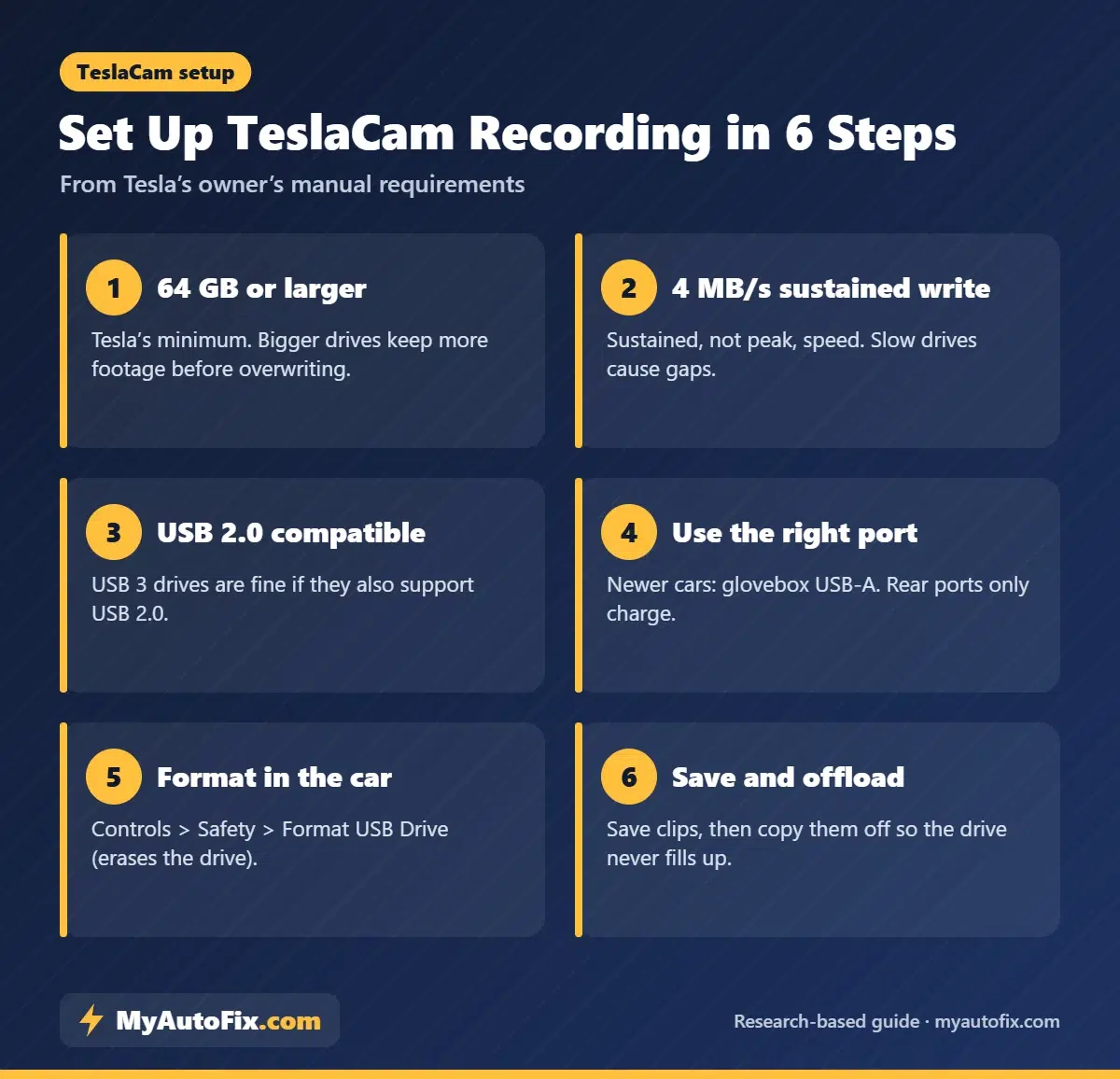
- Choose a drive that meets Tesla’s requirements. At least 64 GB, sustained write of 4 MB/s or more, USB 2.0 compatible. A portable SSD is the most reliable.
- Plug it into the right port. On many newer Model 3 and Model Y cars, use the glovebox USB-A port. Tesla notes some center-console USB-C ports only charge.
- Format it in the car. Go to Controls > Safety > Format USB Drive. This erases the drive and creates the TeslaCam folders.
- Check the Dashcam icon. When the drive is ready, the Dashcam icon appears and recording starts automatically.
- Turn on Sentry Mode if you want parked recording. Controls > Safety > Sentry Mode. It uses battery energy while active.
- Save important clips. Tap the Dashcam icon or honk (if enabled) to save the last 10 minutes.
- Offload regularly. Copy saved clips to a computer and delete them so the drive never fills up. Encrypted clips can be decrypted at dashcam.tesla.com.
Installing an Aftermarket Dash Cam in a Model 3 or Model Y
- Pick the mounting spot. The upper windshield near the mirror, on the passenger side, keeps the view clear and avoids the car’s camera housing.
- Clean the glass. Use isopropyl alcohol so the adhesive mount bonds properly.
- Route the power cable. Tuck it along the headliner, down the A-pillar trim (avoiding the airbag) and under the dash or glovebox.
- Choose a power source. USB power is simplest. For parking mode, use a hardwire kit with a low-voltage cutoff, ideally fitted by a professional.
- Run the rear camera cable. Follow the headliner to the rear glass. Hatchback Model Y installs need care around the liftgate hinge.
- Set the date, time and GPS. Correct timestamps make footage more useful for insurers.
- Format the card and test. Record a short drive and review footage day and night.
12V battery caution: Teslas use a 12V auxiliary battery (lithium-ion on many newer Model 3 and Model Y cars) that is topped up by the main pack. Accessories that run while the car is parked can keep it awake, cost range and, in some cases, stress the 12V system. If you see 12V warnings, read our guides to an EV 12V battery that keeps dying and EV battery drain overnight.
Understanding the TeslaCam Folders
When you plug a TeslaCam drive into a computer, you’ll find a TeslaCam folder with several subfolders. Knowing what each holds saves a lot of confusion after an incident.
| Folder | What it contains | Kept until |
|---|---|---|
| RecentClips | Rolling Dashcam footage, up to about 60 minutes | Overwritten continuously |
| SavedClips | Clips you saved manually (button, voice or honk) | The drive fills up |
| SentryClips | Clips from Sentry Mode security events | Oldest deleted when space runs low |
| EncryptedClips | Encrypted recordings (if encryption is enabled) | Viewed in the car or decrypted at dashcam.tesla.com |
Each saved event includes several video files, one per camera. On newer cars you’ll see front, rear, left and right repeater and pillar views. Many owners use free desktop viewers that stitch the views together, but the car’s own viewer works fine for quick checks.
How to Check That Your TeslaCam Drive Is Healthy
- Look for the Dashcam icon. If the icon shows a red dot or an error, the drive isn’t recording. Tap it for details.
- Watch for “disk too slow” warnings. This means the drive can’t keep up with Tesla’s sustained write requirement. Replace it with a faster drive or an SSD.
- Play back a recent clip. Open the Dashcam viewer while parked and check that recent footage plays smoothly with no gaps.
- Check free space. Offload and delete saved and Sentry clips regularly so new events can be saved.
- Reformat occasionally. After copying clips, reformatting from Controls > Safety refreshes the file system and can clear errors.
A two-minute check once a month is the best insurance that footage will actually be there when you need it.
Choosing Memory Cards for an Aftermarket Dash Cam
Most aftermarket cams record to microSD cards. Ordinary cards are designed for phones and cameras that write occasionally; a dash cam writes continuously, often in a hot car. That combination kills cheap cards, sometimes silently.
- Buy “high endurance” cards made for dash cams and security cameras, such as SanDisk High Endurance or Samsung PRO Endurance.
- Match the size to the camera’s maximum supported capacity; 128–256 GB is a good balance for 4K.
- Format the card in the camera every month or two to keep the file system healthy.
- Replace cards periodically, or sooner if the camera warns of card errors.
- Consider an SSD on cameras that support one, like the VIOFO A329S, especially in hot climates.
What to Do With Footage After an Accident
- Save the clip immediately. On a Tesla, save from the Dashcam icon. On an aftermarket cam, press the emergency or lock button so the file isn’t overwritten.
- Don’t delete or edit anything. Keep original files unedited; insurers and courts prefer untouched footage.
- Copy the files as soon as possible. Move them to a computer and cloud storage, then keep the drive or card safe until the claim is settled.
- Note the time and location. GPS and timestamps help, but write down details too in case of clock errors.
- Share copies, not originals. Give your insurer or police a copy and keep the original files.
Sentry Mode and Energy Use
Sentry Mode keeps the car’s computer and cameras running while parked, so it uses energy from the main battery and prevents the car from fully sleeping. Over a long trip or a week at the airport, that can add up to a noticeable loss of range. To manage it:
- Use location exclusions so Sentry doesn’t run at home or other trusted places.
- Turn Sentry off for long-term parking in a secure garage.
- Keep the state of charge comfortably above the minimum if you leave Sentry on for days.
- Remember that many aftermarket cams in parking mode can have a similar effect on the 12V system, so plan power carefully.
Real-World Tips for Tesla Dash Cam Owners
- Check footage monthly. Most failed recordings are discovered after an incident. Make it a habit to check.
- Replace cheap flash drives. If you see “disk too slow” or missing clips, upgrade to an SSD.
- Use Sentry Mode selectively. Some owners exclude Home or other trusted locations to reduce energy use.
- Keep the windshield clean inside. Haze on the glass ruins night footage. See our tips on streaking wipers too.
- Know your local laws. Rules on windshield devices and audio recording vary by state.
Tesla Dash Cam Mistakes to Avoid
- Using a slow, cheap flash drive. It can fail silently.
- Never offloading saved clips. When the drive fills, new clips can’t be saved.
- Plugging the drive into a charge-only port. Check your car’s manual.
- Hardwiring without a cutoff. A parking-mode cam without protection can drain the 12V battery.
- Mounting in your line of sight. Keep cameras high and out of the driver’s view.
- Recording audio without thinking about consent. Some states require everyone’s consent.
Frequently Asked Questions
Does a Tesla need a dash cam?
Not necessarily. Teslas can record with their own cameras through Dashcam and Sentry Mode when a suitable USB drive is installed. An aftermarket cam adds cabin recording, higher resolution and independence from the car’s software.
What USB drive does a Tesla need for Dashcam?
Tesla requires at least 64 GB, a sustained write speed of at least 4 MB/s, USB 2.0 compatibility and correct formatting. A portable SSD is the most reliable option.
Which USB port should I use for TeslaCam?
On many newer Model 3 and Model Y vehicles, use the USB-A port in the glovebox. Tesla says the center-console USB-C ports may only charge, and rear ports only charge devices.
Does Tesla Sentry Mode record inside the car?
Tesla’s Dashcam and Sentry Mode save footage from the exterior cameras. For cabin video, you need an aftermarket camera with an interior channel.
Will a dash cam drain my Tesla’s 12V battery?
A dash cam in parking mode draws power when the car would otherwise sleep. Use a hardwire kit with a low-voltage cutoff, or rely on Sentry Mode for parked recording.
Does installing a dash cam void the Tesla warranty?
A camera attached with an adhesive or suction mount is a reversible accessory. Electrical damage from a poor hardwire install wouldn’t be covered, so use a quality kit or a professional installer.
How long does TeslaCam keep footage?
Tesla says RecentClips holds up to 60 minutes, and saved and Sentry clips stay until the drive fills. Larger drives keep more before overwriting.
Can I view TeslaCam footage on my phone?
Recent versions of the Tesla app let you view some Sentry clips, and you can view clips on the touchscreen when parked or on a computer. Encrypted clips can be decrypted at dashcam.tesla.com.
How much storage does TeslaCam need?
Tesla’s minimum is 64 GB, but larger drives keep more footage. Tesla says footage before overwriting ranges from about 1 hour on small drives to up to 24 hours on drives of 1 TB or more.
What memory card should I use in a dash cam?
Use a high-endurance microSD card designed for continuous recording, sized within the camera’s supported maximum, and format it in the camera regularly.
The Bottom Line
If you’re happy with Tesla’s built-in Dashcam and Sentry Mode, the best upgrade is reliable storage: a portable SSD like the Samsung T7 Shield comfortably beats Tesla’s 64 GB and 4 MB/s requirements. If you want sharper footage, GPS and a camera that works independently of the car, the VIOFO A229 Pro is the best aftermarket dash cam for Tesla. Rideshare drivers should choose the three-channel Vantrue N4 Pro S for cabin recording, and enthusiasts who want the best footage should look at the VIOFO A329S.
Best Aftermarket: VIOFO A229 Pro TeslaCam Storage: T7 Shield Rideshare: Vantrue N4 Pro S
More EV Guides

6 Best Tesla Model Y Floor Mats (2026): All-Weather Picks for Pre-Refresh and Juniper
The best Tesla Model Y floor mats: 3D MAXpider, WeatherTech, TuxMat and value TPE sets, plus how to get the right fit…

EV Charge Port Frozen? How to Free the Door, Latch and Cable Safely
EV charge port frozen shut or charging cable stuck in the cold? How to use preconditioning and the charge port heater, the…

7 Best Winter Tires for Tesla Model Y (2026): Snow, Ice and Range Compared
The best winter tires for Tesla Model Y in 255/45R19 and 255/40R20: Michelin X-Ice Snow, Blizzak 6, Nokian R5 EV and more,…